Imagine running your first az group create. It succeeds, and you move on.
A week later, your company’s cloud team asks why a resource group called test123 appeared in a shared subscription. Your laptop was still signed in to your work account, and the Azure CLI did what it was told: it used the default subscription.
Now picture the opposite mistake. You’re in your own subscription, nobody is watching the meter, and a forgotten resource keeps running until the invoice arrives.
Neither failure needs an attacker. Both come from skipping a few minutes of setup.
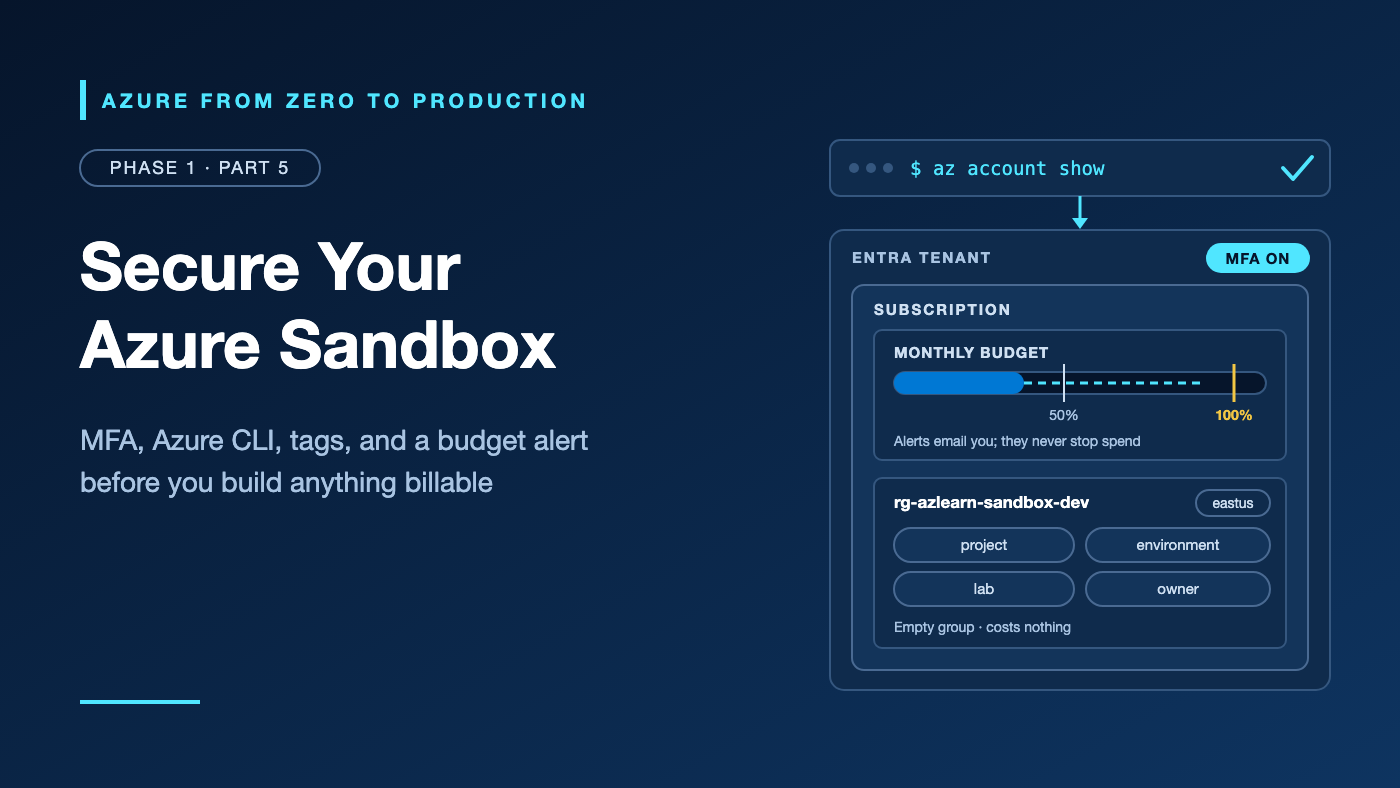
This lab is that setup: a subscription you’re allowed to use, multifactor authentication (MFA) on your sign-in, a CLI pointed at the right tenant and subscription on purpose, one tagged resource group, and a monthly budget that emails you before costs drift. Nothing here is billable, and all of it carries through the series.
What you’ll build
- A subscription you’re allowed to use, selected explicitly and verified with
az account show - MFA on the account you’ll use for every lab
- Azure CLI installed and signed in to the correct Microsoft Entra tenant
- A resource group,
rg-azlearn-sandbox-dev, ineastuswith four cost-allocation tags - A monthly budget with actual and forecast email alerts, created with
az restand checked from the CLI - An
azlearn.envfile for later labs, plus an optional read-only comparison of two regions
Where this fits
Part 1.3, Tenant, Subscription, Resource Group: The Azure Hierarchy Explained, mapped how Azure’s containers nest. Part 1.4, Understand Your Azure Bill Before You Deploy, showed how Azure meters usage and why a budget is an alarm rather than a brake. This lab turns both into a working baseline that every later part reuses. Part 2.1 then explains the identity model behind the roles you rely on here.
Prerequisites
- Knowledge: Parts 1.3 and 1.4, and basic terminal use.
- Azure access: A Microsoft Entra tenant and a subscription you may use for learning (see Step 1), an inbox you read, and an authenticator app or passkey-capable device.
- Microsoft Entra roles: None; MFA registration is self-service. Emergency access accounts in an organisation are a Global Administrator task for its identity team.
- Azure RBAC: Contributor at subscription scope covers the resource group and the budget. Owner also works but grants more than needed. Cost Management Contributor can create budgets but not resource groups.
- Data-plane roles: None.
- Tools: Azure CLI 2.76.0 or later (checked against 2.91.0), no extensions, and a bash shell: macOS, Linux, Windows Subsystem for Linux (WSL), or Azure Cloud Shell. In PowerShell, use
$env:NAME = "value"instead ofexport, and a backtick instead of\. - Estimated cost: No billable resources. Budgets and alerts are included in Microsoft Cost Management at no extra charge, and an empty resource group has nothing to meter.
- Time: 45–60 minutes. A brand-new subscription can take up to 48 hours to support budgets.
How the sandbox fits together
A sandbox is a place where mistakes are cheap and contained. On Azure, that takes four guardrails: the right subscription, a strong sign-in, a labelled container, and a cost alarm.
Microsoft Entra tenant        <- who you are: sign-in, MFA, Entra roles
└── Azure subscription        <- billing and access boundary (Azure RBAC)
    ├── Budget: budget-azlearn-sandbox-monthly
    │     watches the whole subscription, emails at 50%, 100%,
    │     and a forecast of 100%
    └── Resource group: rg-azlearn-sandbox-dev (eastus)
          tags: project, environment, lab, owner

Azure CLI --az login--> Microsoft Entra ID --token--> Azure Resource Manager
          (password + MFA)                    (every command in this lab)
The tenant is your identity boundary: your account, your MFA methods, and directory roles. The subscription trusts that tenant; it’s where usage is billed and access is granted.
The budget sits at subscription scope, beside the resource group rather than inside it. It watches every resource group later labs create, and deleting the resource group doesn’t delete it.
The resource group is an empty, tagged container for lab work. The bottom line shows every command’s path: the CLI gets a token from Microsoft Entra ID, then calls Azure Resource Manager (ARM), Azure’s management API.
Use this setup for personal learning and proofs of concept, or in an employer’s sandbox subscription with its owners’ explicit permission. Don’t use it in production or in a shared subscription whose costs belong to others. Nor is it a production foundation, which adds management groups, Azure Policy, and per-environment subscriptions.
Two kinds of administrator
Microsoft Entra roles, such as Global Administrator, control the directory: users, groups, MFA settings, and app registrations. By default, they grant no access to subscription resources.
Azure role-based access control (Azure RBAC) roles, such as Owner, Contributor, and Cost Management Contributor, control resources at a scope: management group, subscription, resource group, or resource. Lower scopes inherit assignments.
If you signed up yourself, you probably hold both. Whoever creates a tenant becomes its Global Administrator, and the subscription creator typically holds Owner. One stolen password would control the directory and the bill, so Step 2 comes before any command.
Everything here is control plane: managing resources through ARM. Data-plane access, such as reading blobs or secrets, uses separate roles you’ll meet later.
Coming from AWS? Azure has no root user with separate credentials. Your sign-up account is an ordinary identity that holds powerful roles. Protect it like a root user, with strong MFA and limited use, but expect to use it for these early labs; Phase 2 shows how to delegate narrower roles.
Step 1: Get a subscription you’re allowed to use
Every later step attaches to a subscription, so choose it deliberately:
- Azure free account. At the time of writing, eligible new customers get a credit for the first 30 days (USD 200 or the billing-currency equivalent) plus monthly amounts of selected services for 12 months. Sign-up needs a phone number, a non-prepaid card, and a Microsoft or GitHub account. To keep using services after 30 days, or once the credit is spent, you must move to pay-as-you-go. Verify this value in the current Microsoft Azure documentation before implementation.
- Pay-as-you-go: you pay for what you use, with no credit.
- Visual Studio subscriber credits: a monthly credit with a spending limit.
- An employer or school sandbox: a dedicated learning subscription. Never use an employer’s tenant without explicit permission.
Free and credit-based offers have a spending limit equal to the credit. When it’s used up, Azure disables your services until the next period or until you move to pay-as-you-go, which has no limit. That’s the only hard stop here; budgets aren’t one.
✅ Checkpoint: In the Azure portal, Subscriptions shows your subscription as Active. Copy its Subscription ID, then copy the Tenant ID from Microsoft Entra ID > Properties for Step 4.
Permission: None to sign up; a company sandbox’s owner grants access. Billable: No, though sign-up may place a temporary verification hold on your card.
Step 2: Protect your sign-in with MFA
Your account is the key to the directory and the bill, and a password alone is easy to phish.
MFA is also no longer optional. Since October 2024, Microsoft has been enforcing it for the Azure portal, Microsoft Entra admin center, and Intune admin center. A second phase began rolling out gradually on October 1, 2025: Azure CLI, Azure PowerShell, the Azure mobile app, infrastructure-as-code tools, and REST API calls need an MFA-backed sign-in to create, update, or delete resources. Reads are exempt, and workload identities such as managed identities aren’t affected. Verify this value in the current Microsoft Azure documentation before implementation.
Register now, so Step 5 doesn’t fail:
- Personal Microsoft account (Outlook.com, Hotmail, and similar): at
account.microsoft.com/security, select Manage how I sign in, turn on Two-step verification under Additional security, and add the Microsoft Authenticator app or another method. - Work or school account: at
https://mysignins.microsoft.com/security-info, select Add sign-in method and add Microsoft Authenticator or a passkey.
Register two methods so a lost phone doesn’t lock you out.
Keep powerful accounts for admin work. If sign-up created a new tenant, you’re its Global Administrator; a Microsoft account dedicated to Azure learning keeps that identity away from daily email and browsing. In an organisation, your account shouldn’t hold standing Global Administrator; Part 2.2 covers just-in-time elevation.
Emergency access in organisational tenants. Microsoft recommends two or more cloud-only “break glass” Global Administrator accounts on the *.onmicrosoft.com domain, using phishing-resistant MFA such as passkeys (FIDO2) that differ from daily admin methods. Exclude them from Conditional Access policies that block sign-in, store credentials securely, and alert on every use. In someone else’s tenant, ask whether they exist; don’t create them yourself.
✅ Checkpoint: Sign out of the Azure portal and back in. You’re asked for a second factor.
Permission: None; registration is self-service. Billable: No.
Step 3: Install the Azure CLI
The Azure CLI is the series’ default tool: commands are repeatable and reviewable, unlike portal clicks.
On macOS, use Homebrew:
brew update && brew install azure-cli
On Windows, use WinGet in PowerShell, then reopen the terminal:
winget install --exact --id Microsoft.AzureCLI
On Ubuntu or Debian, download Microsoft’s install script and read it before running it with sudo:
curl -fsSL 'https://azurecliprod.blob.core.windows.net/$root/deb_install.sh' --output deb_install.sh
less deb_install.sh
sudo bash deb_install.sh && rm deb_install.sh
Other distributions use dnf, zypper, or tdnf; follow Microsoft’s Linux install guide.
Can’t install software? Open Azure Cloud Shell from the portal, choose Bash, and select No storage account required for a free ephemeral session. It signs you in automatically, so skip az login in Step 4. Files vanish when the session ends.
Check the version:
az version
Expected output, with your own version numbers:
{
  "azure-cli": "2.91.0",
  "azure-cli-core": "2.91.0",
  ...
}
✅ Checkpoint: azure-cli is 2.76.0 or later, the minimum Microsoft recommends for mandatory MFA. If not, run az upgrade or use your package manager.
Permission: Local administrator or sudo rights to install. Billable: No.
Step 4: Sign in and lock in your subscription
The CLI runs every command against a default subscription: whichever was selected last on this machine. That default caused the opening story, so make the choice explicit.
Create a working folder for the series:
mkdir -p ~/azlearn && cd ~/azlearn
Set the lab variables. This is the only block you edit; rerun it in any new terminal before Step 8.
# Replace the values in angle brackets, then run this block.
export AZURE_TENANT_ID="<AZURE_TENANT_ID>"
export AZURE_SUBSCRIPTION_ID="<AZURE_SUBSCRIPTION_ID>"
export AZURE_REGION="eastus"
export RESOURCE_GROUP_NAME="rg-azlearn-sandbox-dev"
export OWNER_ALIAS="<YOUR_ALIAS>"               # lowercase, no spaces
export ALERT_EMAIL="<YOUR_ALERT_EMAIL>"         # an inbox you read
export BUDGET_NAME="budget-azlearn-sandbox-monthly"
export BUDGET_AMOUNT="<MONTHLY_BUDGET_AMOUNT>"  # digits only, billing currency
export COMPARE_REGION="westeurope"              # optional Step 7
Sign in to your tenant:
az login --tenant "$AZURE_TENANT_ID"
A browser opens (on Windows, a Web Account Manager dialog). Complete your password and MFA, and if the CLI lists several subscriptions, pick your sandbox. Without a browser, such as over SSH, use the device code flow:
az login --tenant "$AZURE_TENANT_ID" --use-device-code
Didn’t copy the IDs? Run az login without --tenant, pick your subscription, and copy id and tenantId from az account show into the variables.
Now list, select, and confirm:
az account list --output table

az account set --subscription "$AZURE_SUBSCRIPTION_ID"

az account show \
  --query "{name:name, subscriptionId:id, tenantId:tenantId, user:user.name}" \
  --output json
Expected output, similar to:
{
  "name": "Azure subscription 1",
  "subscriptionId": "00000000-0000-0000-0000-000000000000",
  "tenantId": "00000000-0000-0000-0000-000000000000",
  "user": "you@example.com"
}
--tenant limits sign-in to one directory, which matters if you’re also a guest elsewhere. az account set changes only this machine’s default; nothing changes in Azure.
✅ Checkpoint: subscriptionId and tenantId match your variables.
Permission: Any Azure RBAC role on the subscription, Reader or higher. Billable: No.
Step 5: Create the tagged resource group
The resource group marks lab work and gives cost reports something to group by.
az group create \
  --name "$RESOURCE_GROUP_NAME" \
  --location "$AZURE_REGION" \
  --tags project=azure-learning environment=dev lab=1.5 owner="$OWNER_ALIAS"
--location sets where the group’s metadata lives. --tags takes space-separated key=value pairs. Resources don’t inherit a group’s tags, so later labs tag each resource; Azure Policy can enforce that, as Part 2.5 shows.
Verify the result:
az group show \
  --name "$RESOURCE_GROUP_NAME" \
  --query "{name:name, location:location, state:properties.provisioningState, tags:tags}" \
  --output json
Expected output, similar to:
{
  "location": "eastus",
  "name": "rg-azlearn-sandbox-dev",
  "state": "Succeeded",
  "tags": {
    "environment": "dev",
    "lab": "1.5",
    "owner": "alexk",
    "project": "azure-learning"
  }
}
✅ Checkpoint: state is Succeeded, with all four tags. An MFA error means you need a fresh sign-in; see troubleshooting.
Permission: Contributor or Owner at subscription scope. Billable: No.
Step 6: Create a monthly budget with email alerts
A budget compares actual and forecast spending with an amount you choose and emails you when a threshold is crossed. It never stops, scales down, or deletes anything.
Why not az consumption budget create? In CLI 2.91.0 it can’t set alert thresholds or recipients, and the preview create-with-rg variant covers only resource-group budgets. Microsoft’s budget tutorial recommends the REST API instead, so this step calls the Microsoft.Consumption Budgets API through az rest, which adds your token and sends a relative --url to ARM. It pins API version 2024-08-01; Microsoft Learn also lists 2026-06-01, with no budget property changes.
export BUDGET_START_DATE="$(date -u +%Y-%m-01)T00:00:00Z"
export BUDGET_URL="/subscriptions/${AZURE_SUBSCRIPTION_ID}/providers/Microsoft.Consumption/budgets/${BUDGET_NAME}?api-version=2024-08-01"

cat > budget.json <<EOF
{
  "properties": {
    "category": "Cost",
    "amount": ${BUDGET_AMOUNT},
    "timeGrain": "Monthly",
    "timePeriod": { "startDate": "${BUDGET_START_DATE}" },
    "notifications": {
      "Actual_GreaterThan_50_Percent": {
        "enabled": true, "operator": "GreaterThan", "threshold": 50,
        "thresholdType": "Actual", "contactEmails": ["${ALERT_EMAIL}"]
      },
      "Actual_GreaterThan_100_Percent": {
        "enabled": true, "operator": "GreaterThan", "threshold": 100,
        "thresholdType": "Actual", "contactEmails": ["${ALERT_EMAIL}"]
      },
      "Forecasted_GreaterThan_100_Percent": {
        "enabled": true, "operator": "GreaterThan", "threshold": 100,
        "thresholdType": "Forecasted", "contactEmails": ["${ALERT_EMAIL}"]
      }
    }
  }
}
EOF

az rest --method put --url "$BUDGET_URL" --body @budget.json \
  --query "{name:name, amount:properties.amount, timeGrain:properties.timeGrain}" \
  --output table
The important fields:
amountuses your billing currency;Monthlyresets the count each calendar month.startDatemust be the first of a month, built here in UTC. WithoutendDate, the budget runs 10 years.thresholdis a percentage.Actualfires on accrued cost;Forecastedfires when Azure projects you’ll cross it, your earliest warning. Microsoft recommendsGreaterThan; a budget holds up to five alerts.
Prefer the portal? Open Subscriptions, select yours, choose Budgets, then Add. Pick a Monthly reset period and an amount, then add the same three alerts. The checks below work either way.
Validate the budget from the CLI:
az consumption budget list \
  --query "[].{name:name, amount:amount, timeGrain:timeGrain}" \
  --output table

az rest --method get --url "$BUDGET_URL" \
  --query "properties.notifications.*.{type:thresholdType, threshold:threshold, emails:join(', ', contactEmails)}" \
  --output table
Expect a preview warning from the consumption command. Expected output from the second command, similar to:
Type        Threshold    Emails
----------  -----------  ---------------
Actual      50.0         you@example.com
Actual      100.0        you@example.com
Forecasted  100.0        you@example.com
Expect a delay. Cost data usually arrives within 8–24 hours, Azure evaluates budgets every 24 hours, and emails normally follow within an hour of an evaluation. A spike can run for a day or more before you hear about it. Add azure-noreply@microsoft.com to your safe senders.
✅ Checkpoint: Your budget appears in the list, with three alerts addressed to your email.
Permission: Owner, Contributor, or Cost Management Contributor at subscription scope; Reader and Cost Management Reader can view. Billable: No; budgets and alerts are free.
Step 7: Compare two regions without creating anything (optional)
This read-only step shows your subscription’s view of the regions and zones from Part 1.2.
az account list-locations \
  --query "[?name=='$AZURE_REGION' || name=='$COMPARE_REGION'].{region:name, zones:availabilityZoneMappings}" \
  --output json
Each entry pairs a logical zone, the number you use in commands, with a physical zone. A region without zones returns null. Another subscription can map logical zone 1 to a different physical zone, so “zone 1” isn’t the same building everywhere.
Next, compare virtual machine (VM) sizes:
for region in "$AZURE_REGION" "$COMPARE_REGION"; do
  az vm list-skus \
    --location "$region" \
    --resource-type virtualMachines \
    --size Standard_D2s \
    --output table
done
--size accepts partial names, so several generations appear. Illustrative output:
ResourceType     Locations    Name             Zones    Restrictions
---------------  -----------  ---------------  -------  ------------
virtualMachines  eastus       Standard_D2s_v5  1,2,3    None
Zones lists where a size is offered. NotAvailableForSubscription under Restrictions means your subscription can’t deploy that size there, which is common on new or free subscriptions.
✅ Checkpoint: You can name one difference between your two regions, in zones or VM sizes.
Permission: Reader at subscription scope. Billable: No.
Step 8: Save your variables and validate the sandbox
Later labs need your tenant, subscription, region, and alias. Save them, and keep the file private:
cat > azlearn.env <<EOF
export AZURE_TENANT_ID="${AZURE_TENANT_ID}"
export AZURE_SUBSCRIPTION_ID="${AZURE_SUBSCRIPTION_ID}"
export AZURE_REGION="${AZURE_REGION}"
export OWNER_ALIAS="${OWNER_ALIAS}"
export ALERT_EMAIL="${ALERT_EMAIL}"
EOF
chmod 600 azlearn.env
Each later lab sets its own resource group and appends its own values. If you keep lab files in Git, add azlearn.env and budget.json to .gitignore.
Run the validation in a new terminal, which also proves the file works:
cd ~/azlearn && source azlearn.env
az account set --subscription "$AZURE_SUBSCRIPTION_ID"

test "$(az account show --query id --output tsv)" = "$AZURE_SUBSCRIPTION_ID" && echo "PASS subscription" || echo "FAIL subscription"
test "$(az account show --query tenantId --output tsv)" = "$AZURE_TENANT_ID" && echo "PASS tenant" || echo "FAIL tenant"
test "$(az group show --name rg-azlearn-sandbox-dev --query tags.lab --output tsv)" = "1.5" && echo "PASS tags" || echo "FAIL tags"
test "$(az consumption budget show --budget-name budget-azlearn-sandbox-monthly --query "length(notifications)" --output tsv)" = "3" && echo "PASS budget" || echo "FAIL budget"
Every check that reaches Azure also proves CLI access.
✅ Checkpoint: All four checks print PASS. You confirmed MFA in Step 2.
Permission: Reader at subscription scope. Billable: No.
Security considerations
- MFA comes first. Prefer phishing-resistant methods such as passkeys for accounts holding Owner or Global Administrator, and keep two methods registered.
- Least privilege applies to you too. This lab needs Contributor at subscription scope. Owner adds the right to grant access, which you don’t need yet.
- Your laptop holds tokens.
az logincaches them under~/.azure, so lock your machine and runaz logouton shared computers. Avoidaz login --username --password; that flow can’t complete MFA. - Automation shouldn’t use your account. Pipelines should use managed identities or workload identity federation, which mandatory MFA doesn’t affect; Part 2.3 covers federation.
- Keep identifiers private.
azlearn.envholds IDs and an email address, not secrets. Never add passwords, keys, or tokens to it.
Cost considerations
- Nothing here is billable: resource groups, budgets, cost alerts, the CLI, and ephemeral Cloud Shell sessions are free.
- Budgets alert; they never stop spending. With every threshold crossed, resources keep running and accruing charges.
- Alerts lag by a day or more, so act at 50%, not 100%.
- The spending limit is different. Credit-based offers disable services when the credit runs out. After you move to pay-as-you-go, that net is gone, and the budget becomes your main signal.
Common mistakes and troubleshooting
Problem: az account set says the subscription “doesn’t exist in cloud ‘AzureCloud’”
Likely cause: You’re signed in to a different tenant, the ID has stray quotes or spaces, or the CLI’s subscription list is stale.
How to diagnose: Run az account list --all --refresh --output table and look for your subscription. An “Authentication failed against tenant” message at sign-in means your account spans several tenants.
Resolution: Run az login --tenant "$AZURE_TENANT_ID", then az account set again. When capturing IDs in scripts, use --output tsv to avoid JSON quotes.
Problem: az group create fails with RequestDisallowedByPolicy and “MFA is required”
Likely cause: Mandatory MFA or a Conditional Access policy covers create operations, and your CLI session wasn’t established with MFA.
How to diagnose: Run az version. From 2.76.0, the error includes a suggested sign-in command.
Resolution: Register MFA (Step 2) and run az upgrade. Then run az logout followed by the exact az login ... --claims-challenge command the CLI printed, or sign in again with az login --tenant "$AZURE_TENANT_ID".
Problem: AuthorizationFailed when creating the resource group or budget
Likely cause: Your role is too narrow, such as Reader, or it’s assigned at a resource group rather than the subscription.
How to diagnose: List your assignments, including inherited ones:
az role assignment list \
  --assignee "$(az ad signed-in-user show --query id --output tsv)" \
  --scope "/subscriptions/$AZURE_SUBSCRIPTION_ID" \
  --include-inherited \
  --query "[].{role:roleDefinitionName, scope:scope}" \
  --output table
Resolution: Ask the subscription owner for Contributor at subscription scope. New assignments can take a few minutes to apply; sign out and back in if errors persist.
Problem: az rest returns an error when creating the budget
Likely cause: The subscription is under 48 hours old, amount isn’t a plain number, startDate isn’t the first of a month, or the offer doesn’t support budgets.
How to diagnose: Read the response’s error message, and check the generated values with grep -E '"amount"|"startDate"' budget.json.
Resolution: Fix BUDGET_AMOUNT (digits only), rebuild budget.json, and rerun the PUT. On a new subscription, wait up to 48 hours.
Problem: No budget alert emails arrive
Likely cause: No threshold has been crossed, cost data hasn’t caught up, or messages land in junk mail.
How to diagnose: Compare current spend with the alert settings:
az rest --method get --url "$BUDGET_URL" \
  --query "{spend:properties.currentSpend, alerts:properties.notifications}" \
  --output json
Resolution: Correct a mistyped ALERT_EMAIL and rerun the PUT. Add azure-noreply@microsoft.com to safe senders, and allow a day or more.
Problem: az vm list-skus shows NotAvailableForSubscription or says the subscription isn’t registered for Microsoft.Compute
Likely cause: The size is restricted for your subscription in that region, or the Compute resource provider isn’t registered; new subscriptions register only a default set.
How to diagnose: Run az provider show --namespace Microsoft.Compute --query registrationState --output tsv.
Resolution: Try another size or region. Register the provider with az provider register --namespace Microsoft.Compute; it’s free but needs Contributor at subscription scope and takes a few minutes.
Production readiness checklist
- [ ] Security: Every human identity signs in with MFA, enforced by security defaults or Conditional Access; admins use phishing-resistant methods.
- [ ] Security: Two emergency access accounts exist, are tested on a schedule, and raise an alert on every sign-in.
- [ ] Security: Nobody holds standing Global Administrator or Owner for daily work; elevation is just-in-time.
- [ ] Cost Optimization: Every subscription has a budget whose alerts reach a team mailbox or action group.
- [ ] Cost Optimization: Azure Policy requires
project,environment, andownertags. - [ ] Operational Excellence: Sandbox, development, and production use separate subscriptions under management groups.
- [ ] Operational Excellence: Resource groups, tags, and budgets are defined as reviewed infrastructure as code.
- [ ] Operational Excellence: Someone owns the response when a budget alert fires, and contacts survive staff changes.
- [ ] Reliability: The region supports availability zones and the VM sizes you need, with quota confirmed.
- [ ] Performance Efficiency: The region sits close to users and data.
Cleanup
This lab created nothing billable. Keep MFA and the budget for the whole series; the budget watches every lab you run next. You can keep the empty resource group too, since it costs nothing.
When you finish the series or abandon this subscription, remove the lab-owned items. The budget lives at subscription scope, outside the resource group, so it needs its own command. Literal names keep the commands from picking up another lab’s variables. az group delete removes everything inside the group:
cd ~/azlearn && source azlearn.env
az account set --subscription "$AZURE_SUBSCRIPTION_ID"

az group delete --name rg-azlearn-sandbox-dev --yes
az consumption budget delete --budget-name budget-azlearn-sandbox-monthly
rm -f budget.json
Verify:
az group exists --name rg-azlearn-sandbox-dev
az consumption budget list --query "[?name=='budget-azlearn-sandbox-monthly']" --output table
az resource list --tag project=azure-learning --output table
Expect false, then no budget rows, then no lab resources. Keep MFA registered regardless, and keep azlearn.env while you continue the series.
Key takeaways
- Choose the subscription on purpose: start every lab with
az account setandaz account show. - MFA is mandatory for Azure sign-ins, including CLI create, update, and delete operations; register it early.
- Entra roles govern the directory; Azure RBAC roles govern resources. Sign-up accounts often hold both.
az consumption budget createcan’t set alert recipients; the Budgets REST API throughaz restcan.- Budgets alert after a delay of a day or more, and they never stop spending.
- A subscription-scope budget outlives resource-group deletion, which is useful while learning and easy to forget during cleanup.
Quick self-check
- Your budget’s 100% alert fires on the tenth. What happens to your running resources?
- You delete
rg-azlearn-sandbox-dev. Does the budget disappear? - Why run
az account setandaz account showbefore creating anything? - Why does this lab use
az restinstead ofaz consumption budget create? - Which CLI operations need an MFA-backed sign-in under mandatory MFA?
Answers
- Nothing. Budgets only send email; resources keep running and billing. Only a credit-based spending limit disables services.
- No. It lives at subscription scope and needs its own delete command.
- The CLI uses whichever subscription was last selected on that machine, which may belong to another tenant or team.
- The CLI command can’t set alert thresholds or recipients; the REST API can, including forecast alerts.
- Create, update, and delete. Reads are exempt, and workload identities aren’t affected.
References
- Tutorial: Create and manage budgets — Microsoft Learn
- Budgets - Create Or Update (REST API) — Microsoft Learn
- Plan for mandatory Microsoft Entra multifactor authentication — Microsoft Learn
- Verify mandatory MFA setup, including personal accounts — Microsoft Learn
- Manage emergency access admin accounts — Microsoft Learn
- How to install the Azure CLI — Microsoft Learn
- Sign in with Azure CLI interactively — Microsoft Learn
- Azure spending limit — Microsoft Learn
What’s next
You built this sandbox with Owner or Contributor rights. Part 2.1, Access Denied? Understand Microsoft Entra ID and Azure RBAC, explains how those rights work: identities, role definitions, assignments, and scopes, and why a teammate with a narrower role would have hit AuthorizationFailed in Step 5.
Which step took longest for you: MFA, CLI sign-in, or the budget? Share the error text in the comments, and it may become the next troubleshooting entry.
Series navigation
- ← Previous: Understand Your Azure Bill Before You Deploy
- → Next: Access Denied? Understand Microsoft Entra ID and Azure RBAC
- 📚 Full series roadmap
Disclaimer: Azure services, SKUs, interfaces, limits, and pricing change over time. Verify details in the current Microsoft Azure documentation before implementation.