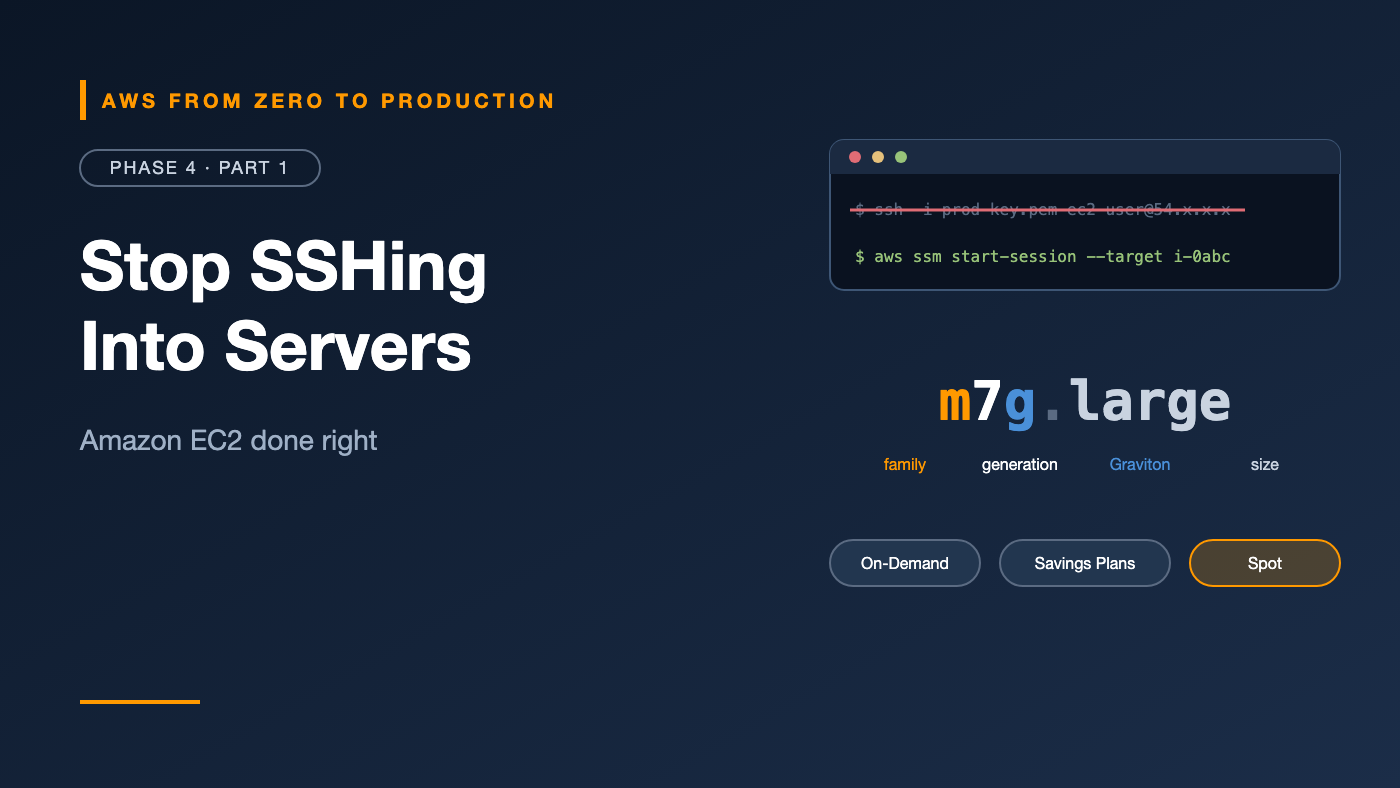
AWS from Zero to Production — Phase 4, Part 1 of 6 · See the full series roadmap
Here’s how a lot of people learn EC2:
Launch an instance. Download a .pem key. Open port 22 to the world. SSH in. Install things by hand. Forget what you installed. Lose the key. Panic.
Six months later, that server is a pet: unique, fragile, impossible to rebuild, and nobody dares to touch it.
Professionals do it differently. Servers are built from images, configured by code, accessed without SSH keys, and replaced instead of repaired. This article shows you how — and covers every EC2 building block along the way.
What you’ll walk away with
- 🧮 How to read instance types like
m7g.large - 💿 AMIs, user data, and EC2 Image Builder
- 💾 EBS volumes vs. instance store
- 💸 On-Demand, Savings Plans, Reserved Instances, and Spot
- 📍 Placement groups and Elastic IPs
- 🔑 Key pairs — and why Session Manager replaces them
What is EC2?
Amazon Elastic Compute Cloud (EC2) gives you virtual machines, called instances, in minutes. You choose the CPU, memory, storage, operating system, and network — and pay only while they run.
EC2 is the foundation under many other services. Even when you use containers or managed databases, there’s often EC2 capacity underneath.
Instance types: reading the name
An instance type defines the hardware. The name tells you what you’re getting:
m7g.large
| ||  |
| ||  +-- size: nano, micro, small, medium, large, xlarge, 2xlarge...
| |+----- attributes: g = AWS Graviton (Arm), i = Intel, a = AMD,
| |                   d = local NVMe storage, n = enhanced networking
| +------ generation: higher is newer (and usually better value)
+-------- family: m = general purpose
Instance families
- General purpose (M, T): balanced CPU and memory. Web servers, small databases, most apps. T instances are burstable — cheap, with CPU credits for short spikes.
- Compute optimized ©: high CPU per GB of memory. Batch processing, encoding, high-traffic APIs.
- Memory optimized (R, X): lots of memory. In-memory caches, large databases, analytics.
- Storage optimized (I, D): fast local storage. High-IOPS databases and data warehouses.
- Accelerated computing (P, G, Inf, Trn): GPUs and ML chips. Model training and inference, graphics.
Engineer’s note: Graviton instances (the
gsuffix) use AWS-designed Arm processors and often give better price-performance. Most Linux workloads, languages, and containers run on Arm without code changes — but build your container images forarm64.
Picking a size
Start small, measure, then rightsize. CloudWatch metrics and AWS Compute Optimizer (Phase 10) tell you whether you’re over- or under-provisioned. Changing the type is a stop, modify, and start.
Amazon Machine Images (AMIs)
An AMI is the template an instance boots from: operating system, software, and configuration.
- AWS-provided AMIs: Amazon Linux 2023, Ubuntu, Windows Server, and more.
- AWS Marketplace AMIs: vendor software, sometimes with an extra license charge.
- Your own AMIs: built from a configured instance, or by a pipeline.
AMI IDs differ by Region. Instead of hard-coding them, use the public Systems Manager parameters that always point to the latest version:
aws ssm get-parameter \
  --name /aws/service/ami-amazon-linux-latest/al2023-ami-kernel-default-x86_64 \
  --query Parameter.Value --output text
EC2 Image Builder
EC2 Image Builder automates building, testing, and distributing golden images: a base AMI plus your hardening, agents, and patches. Run it on a schedule, and every new instance starts from a fresh, patched image.
User data: configure at first boot
User data is a script that runs when an instance first starts. It’s the simplest way to make instances configure themselves:
#!/bin/bash
dnf update -y
dnf install -y nginx
systemctl enable --now nginx
- Runs as root, once, at first boot by default.
- Output goes to
/var/log/cloud-init-output.log— your first stop when something fails. - Keep it short. Heavy setup belongs in the AMI; user data handles last-minute configuration.
Watch out: Never put secrets in user data. Anyone who can describe the instance attributes can read it. Fetch secrets at runtime from Secrets Manager instead.
Storage: EBS vs. instance store
Amazon Elastic Block Store (EBS)
EBS volumes are network-attached disks that persist independently of the instance.
- Live in one AZ; an instance can only attach volumes in its own AZ.
- Survive stop and start. Root volumes are deleted on termination by default; additional volumes aren’t.
- Back them up with snapshots, stored in S3 behind the scenes.
- gp3 is the default general-purpose SSD, with baseline performance you can raise independently of size. io2 is for demanding databases. st1 and sc1 are cheaper HDDs for throughput-heavy or cold data.
Phase 5 goes deep on EBS volume types and snapshots.
Instance store
Some instance types include instance store: physical disks on the host.
- Very fast.
- Ephemeral: data is lost when the instance stops, terminates, or the hardware fails.
- Ideal for caches, scratch space, and temporary data — never for anything you can’t lose.
Networking: security groups and Elastic IPs
- Every instance has one or more security groups (Phase 3, Part 2). Allow only what’s needed, and reference other security groups instead of IP ranges.
- A public IP assigned at launch changes when you stop and start the instance.
- An Elastic IP is a static public IPv4 address you can move between instances. It’s billed by the hour, so release ones you don’t use.
Engineer’s note: If you think you need an Elastic IP for a web server, you probably need a load balancer instead. Part 2 explains why.
The instance metadata service (IMDS)
Every instance can query http://169.254.169.254 for information about itself — its ID, AZ, and, importantly, the temporary credentials of its IAM role.
IMDSv2 requires a session token, which protects against attacks that trick an app into fetching that URL, such as server-side request forgery. Always require it:
aws ec2 run-instances ... --metadata-options HttpTokens=required
And give instances permissions through an IAM role (an instance profile) — never by copying access keys onto the server.
Key pairs — and why you may not need them
A key pair lets you SSH into Linux instances: AWS stores the public key, and you keep the private key.
The problems:
- Private keys get shared, copied, and lost.
- Port 22 must be open, usually to some IP range.
- There’s no central record of who ran which command.
AWS Systems Manager Session Manager
Session Manager gives you a shell on an instance through the AWS console or CLI:
- No SSH keys and no inbound ports — the SSM Agent makes an outbound connection.
- Access controlled by IAM, so you can limit who reaches which instances.
- Sessions can be logged to CloudWatch Logs or S3.
Requirements:
- The SSM Agent, preinstalled on Amazon Linux and many other AWS AMIs.
- An instance role with the
AmazonSSMManagedInstanceCoremanaged policy. - A network path to Systems Manager: a NAT gateway, or interface endpoints for
ssm,ssmmessages, andec2messages.
aws ssm start-session --target i-0123456789abcdef0
The CLI command needs the Session Manager plugin installed locally.
Recommendation: Launch instances without a key pair and without port 22 open. Use Session Manager when you truly need a shell — and treat needing one as a sign that something should be automated.
Pricing models
You can run the same instance under very different prices:
- On-Demand: pay per second (Linux) with no commitment. Most flexible, highest price.
- Savings Plans: commit to a consistent spend, in dollars per hour, for one or three years, for a significant discount. Compute Savings Plans also apply to Fargate and Lambda.
- Reserved Instances: commit to a specific instance configuration for one or three years. Mostly superseded by Savings Plans for new commitments.
- Spot Instances: use spare EC2 capacity at a steep discount — often up to 90% — but AWS can reclaim it with a two-minute warning.
- Dedicated Hosts: a physical server for you, for licensing or compliance needs.
Which to use?
- Steady, always-on baseline: Savings Plans.
- Spiky or unpredictable: On-Demand.
- Interruptible work — batch jobs, CI runners, stateless workers, big data: Spot.
Engineer’s note: A common pattern is a Savings Plan for the baseline, On-Demand for peaks, and Spot for anything that can retry. Phase 10 covers cost optimization in depth.
Placement groups
Placement groups influence how instances are placed on hardware:
- Cluster: packed close together in one AZ for the lowest latency and highest throughput between them. Used for HPC and tightly coupled workloads.
- Spread: each instance on distinct hardware, so a single hardware failure can’t take out more than one. Limited to seven running instances per AZ per group.
- Partition: groups of instances on separate racks. Used by large distributed systems like Kafka, HDFS, and Cassandra.
Most web applications never need one.
Common mistakes
- Opening port 22 to
0.0.0.0/0. - Storing access keys on instances instead of using an IAM role.
- Hard-coding AMI IDs that are outdated or wrong in other Regions.
- Putting important data on instance store.
- Running everything On-Demand for years without a Savings Plan.
- Hand-configuring servers that can’t be rebuilt.
- Using IMDSv1 when IMDSv2 can be required.
Key takeaways
- Instance names encode family, generation, attributes, and size.
- Build from AMIs, configure with user data, and replace instead of repair.
- EBS persists; instance store is fast but ephemeral.
- Use IAM roles and IMDSv2 — never keys on the server.
- Session Manager replaces SSH keys and open ports.
- Mix Savings Plans, On-Demand, and Spot to match how your workload behaves.
Quick self-check
Test yourself before moving on:
- What does the
gmean inc7g.xlarge? - Where would you look if a user data script failed?
- What three things does Session Manager need?
- Which pricing model fits a nightly batch job that can safely retry?
Answers
- AWS Graviton — an Arm-based processor.
/var/log/cloud-init-output.logon the instance, or the system log in the console.- The SSM Agent, an instance role with
AmazonSSMManagedInstanceCore, and a network path to Systems Manager. - Spot Instances.
What’s next
In Part 2, we put instances behind load balancers and let Auto Scaling add and remove them automatically: ALB, NLB, target groups, health checks, launch templates, and scaling policies.
Do you still SSH into servers at work? Be honest in the comments.